Cleaning Desk tutorials

Run your next workday on desktop.

Follow an owner, a cleaner and the office from an imported schedule to a finished practice visit. The screenshots use the built-in fictional company.

On a computer, use Today and My day in the left sidebar.

Owner

Bring over your schedule

Compare the first two weeks in Cleaning Desk with the schedule your team is using today.

  1. Open Today → Run your next workday. Set the first service day, then choose Move my existing business.
  2. Bring the crew roster and standing schedule export, then add a separately dated calendar or day sheet for actual visits. Match the spreadsheet columns and review the rows that need attention.
  3. Open Two-week schedule comparison. Find each visit under its day, then check the building, start time, assigned crew and result. Expand a visit to compare Your original calendar and In Cleaning Desk for the visit length and details. Use What changed to find anything you need to reconcile.
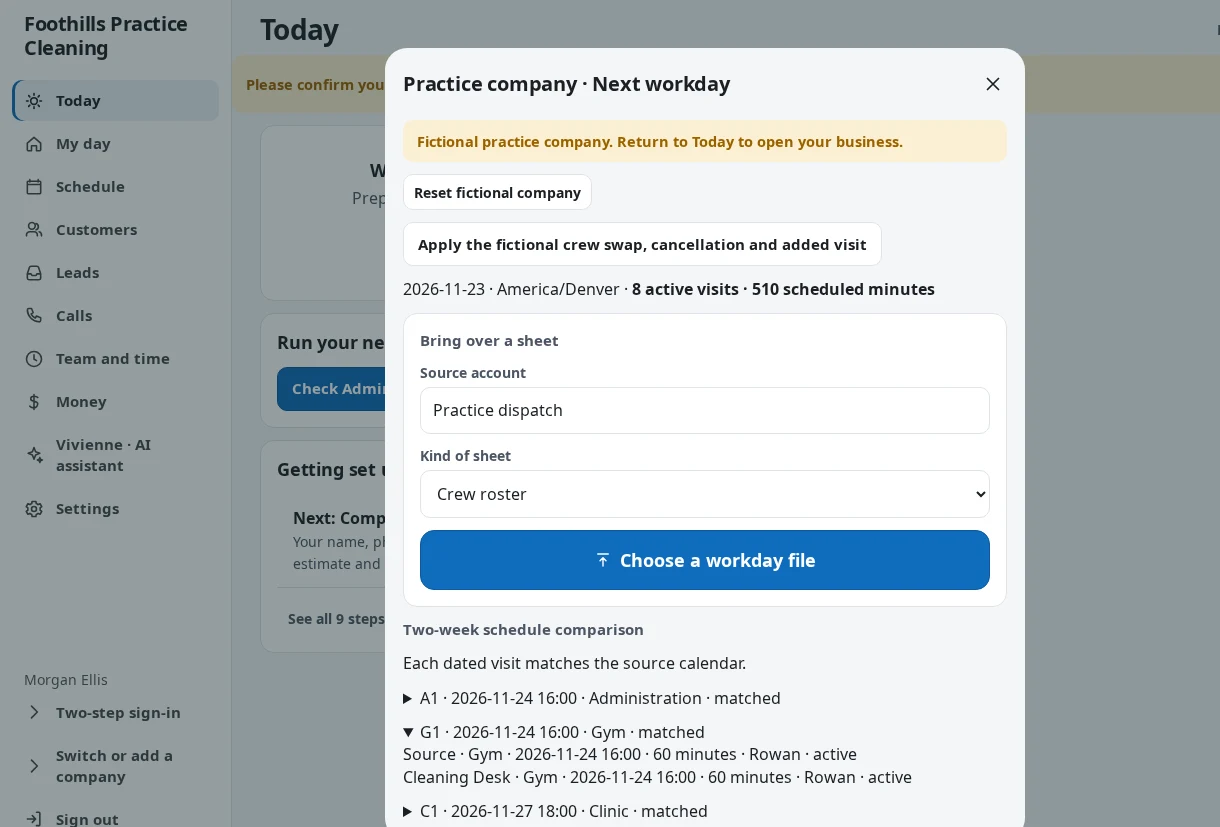
Cleaning Desk’s two-week schedule comparison, with visits grouped by day and each visit showing a building, start time, assigned cleaner and result.
Visits are grouped by day. Open a building to compare the original calendar with Cleaning Desk. View full size

Owner and cleaners

Check what each cleaner sees

Verify the handoff from the office’s schedule to the person doing the job.

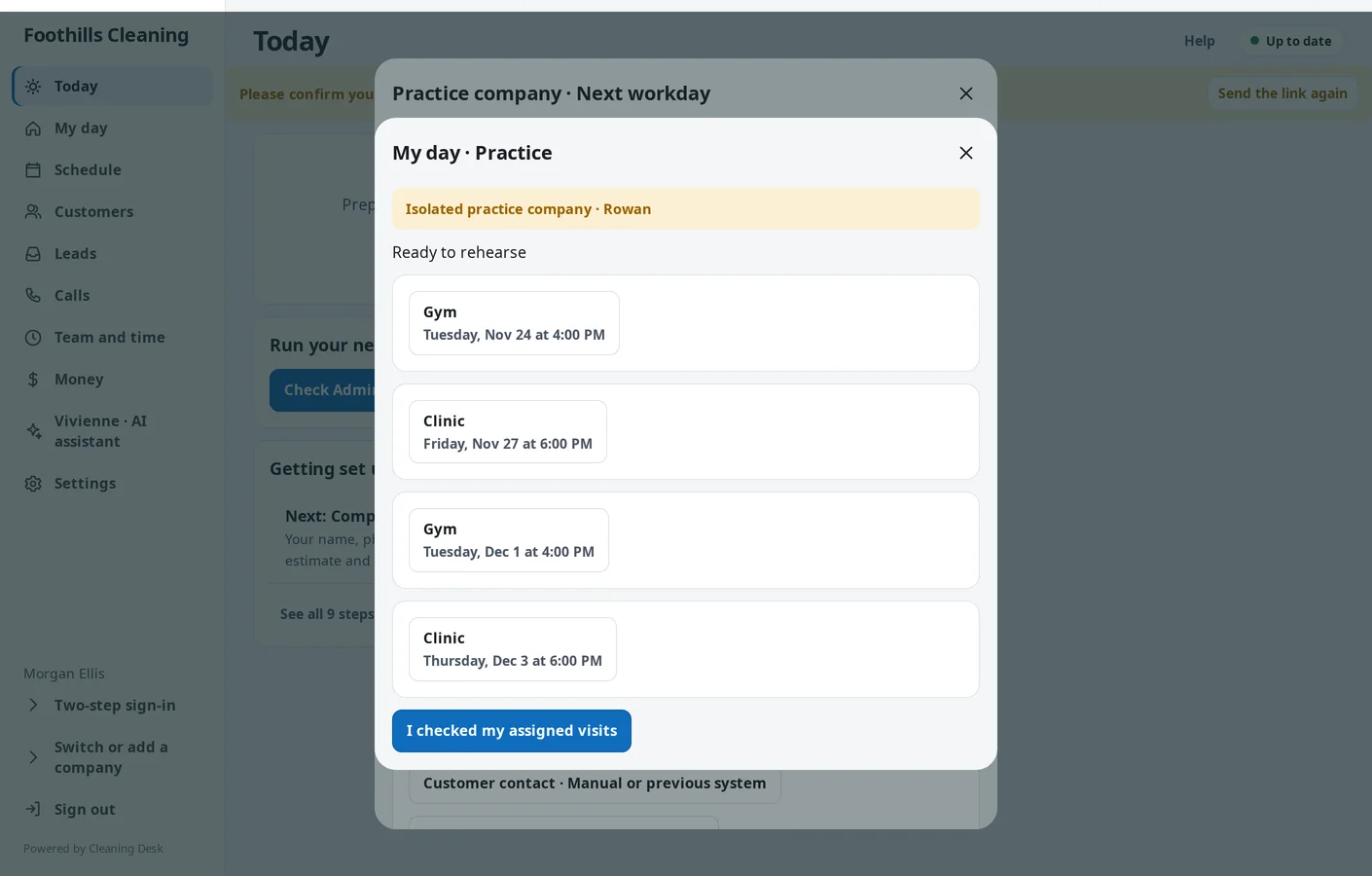
  1. In Run your next workday, open Rehearse the workday. In a real company plan, choose the staff sign-in for each imported worker and select Link this sign-in.
  2. Have each cleaner open their rehearsal in My day and compare the buildings and times with the day sheet.
  3. The cleaner selects I checked my assigned visits. In the owner view, check for Assignments checked from their sign-in.
Rowan’s My day practice screen showing assigned buildings, dates and start times, with a button to confirm the assignments.
Each assigned building has a date and start time. Confirm after checking the whole list. View full size

Cleaner and office

Rehearse a visit and report a locked room

Run through the visit with fictional jobs before you use it on a client site.

  1. In Run your next workday, choose Try an isolated sample company. Under Rehearse the workday, select a cleaner’s practice sign-in.
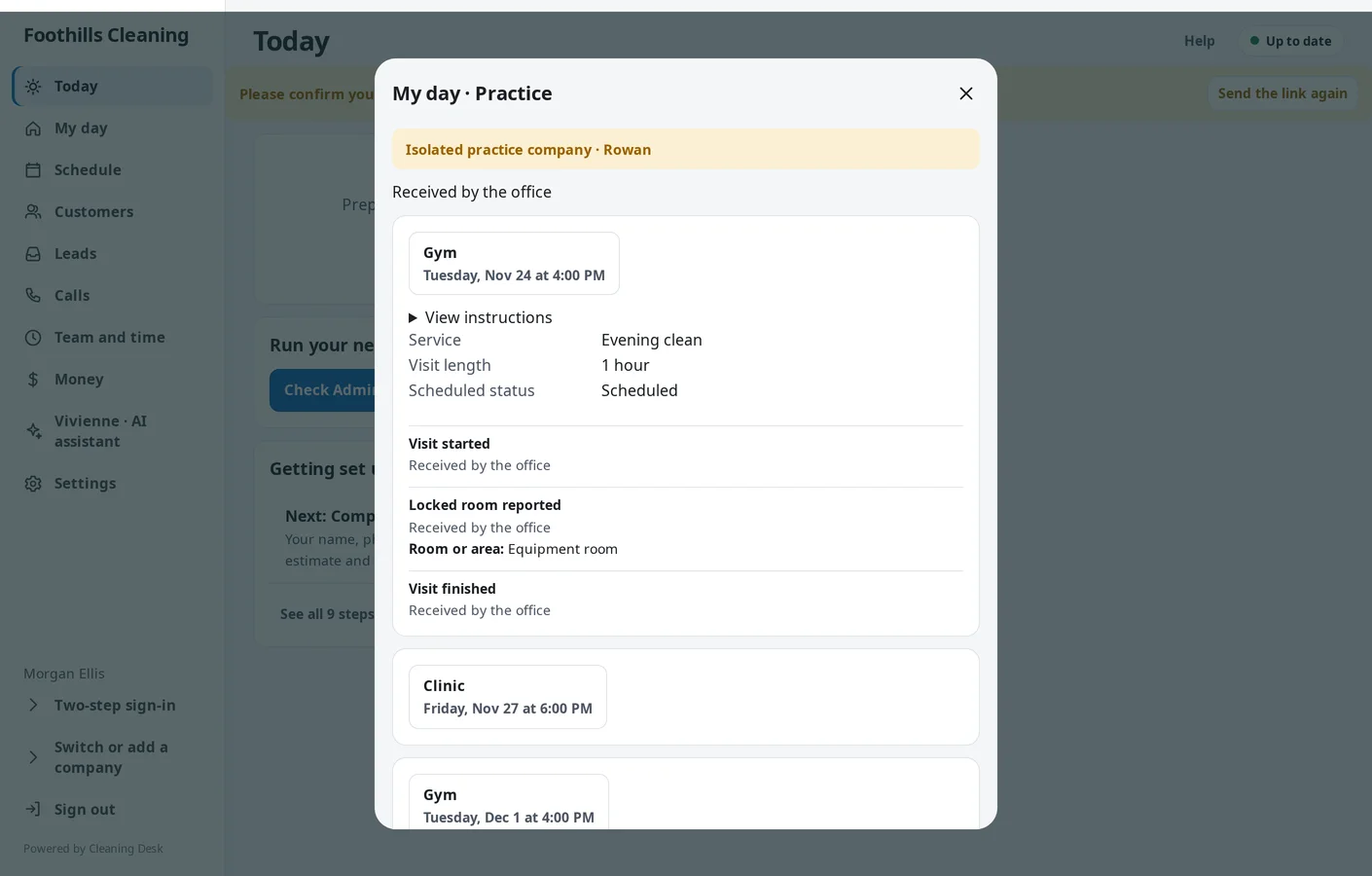
  2. Open an assigned visit in My day · Practice, expand View instructions and select Start visit.
  3. Enter the room or area without access codes, select Cannot finish this room · Locked door, then select Finish visit with locked room.
  4. Check that the start, locked-room report and finish each say Received by the office. If an action is waiting on this phone, reconnect and check for its receipt again.
The cleaner’s practice visit with separate office receipts for starting the visit, reporting a locked room and finishing the visit.
The start, locked-room report and finish each have an office receipt. View full size